Suffer in Imagination: AI Motivational Reel with Seneca


IMAGE PROMPT (Google Flow)
generate an image to explain this concept: “We suffer more often in imagination than in reality.”

ANIMATION PROMPT (Google Flow, Omni 3.1, 720p, 10 seconds)
slow motion animate, push in camera. No voice, no speech, no logo, no graphics
The how
- Reference
- VID-0011
- Model
- Eleven v4, Nano Banana 2.1, Omni 3.1
- Duration
- 13 s
- Aspect ratio
- 9:16
- Dimensions
- 1440 x 2560
- Resolution
- 1440p
- Frame rate
- 30 fps
- Camera motion
- Slow push in toward the woman’s face, in slow motion
- File format
- MP4
- Steps
- 1. In Google Flow, create the start image with the image prompt.
2. Animate that image in Google Flow with Omni 3.1, at 720p and 10 seconds, with the animation prompt.
3. Generate the voice in ElevenLabs with text to speech, using Eleven v4.
4. Choose the background music on Pixabay.
5. Assemble the final reel in CapCut with the clip, the voice, the music and the captions. - Expected result
- A 13-second vertical reel. A woman sits by a rain-streaked window at night with the city lights blurred behind her, and the camera slowly pushes in toward her face. Captions with highlighted words follow the voiceover, and soft music plays underneath.
- Tips
- Build the image prompt around one clear concept, not a long scene
Keep the animation prompt short and finish it with “No voice, no speech, no logo, no graphics”
Use slow motion and a single push-in for an emotional mood
Read the quote aloud before you generate the voice to check the rhythm
Keep the music quiet so it does not cover the voice
Change only the quote to build a series with the same structure - Common mistakes
- Leaving out the “no voice, no logo, no graphics” line, which can add unwanted elements to the clip
Asking the animation tool to write the quote on screen, because the lettering can distort
Adding several camera moves to a 10-second clip
Using loud music that covers the voice
Choosing a long quote that does not fit the length of the clip - Use case
- Motivational reel, Quote video
About this prompt
Table of Contents
- Why we suffer in imagination, and how the reel shows it
- Steps 1 and 2: create the image and animate it
- Steps 3 to 5: add voice, music and the final edit
- How to adapt this reel to your own quote
- Related Content
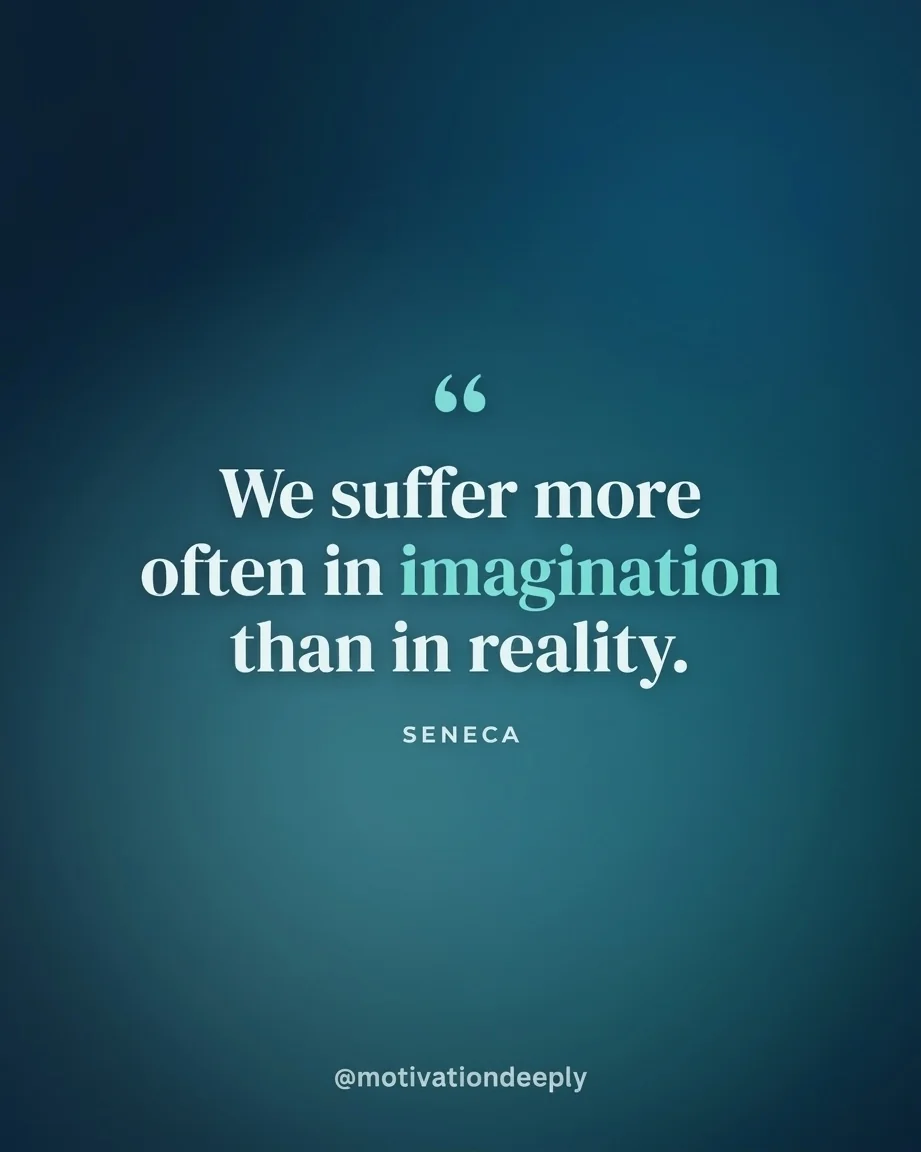
This reel shows how we suffer in imagination more often than in reality, a line attributed to Seneca, in 13 seconds of vertical video. A woman sits by a rain-streaked window at night while the camera slowly pushes in, and a voiceover, quiet music and on-screen captions carry the message. The whole reel takes five steps and four tools: Google Flow, ElevenLabs, Pixabay and CapCut.
Why we suffer in imagination, and how the reel shows it
The idea is simple: one short quote, one clear image. A person alone with their thoughts by a window at night shows the concept without a single graphic. Slow motion and a gentle push-in keep the eye on the face, so the viewer has time to read the captions and feel the line.
Steps 1 and 2: create the image and animate it
Start in Google Flow and ask for an image that explains the concept: “generate an image to explain this concept: We suffer more often in imagination than in reality.” Then animate that image in Google Flow with Omni 3.1 at 720p and 10 seconds, using a short prompt: “slow motion animate, push in camera. No voice, no speech, no logo, no graphics.” The last part keeps the clip clean, so you can add the voice and the captions later.
Steps 3 to 5: add voice, music and the final edit
Generate the voice in ElevenLabs with text to speech and the Eleven v4 model. Choose a background track from Pixabay and keep it quiet, so the voice stays clear. Then assemble the final reel in CapCut, combining the animated clip, the voice, the music and the on-screen captions.
How to adapt this reel to your own quote
Keep the structure and change the quote. Another line from a philosopher or a writer works with the same five steps, and the image prompt only needs the new concept. Keep the animation prompt short and keep the “no voice, no logo” line, because that is what leaves room for your own audio and captions. Even a line about how we suffer in imagination can become a series with this method.
Want more prompts like this one? Watch the tutorials on the Keep Me Signed In YouTube channel.