Old sailor sea monologue with Veo 3
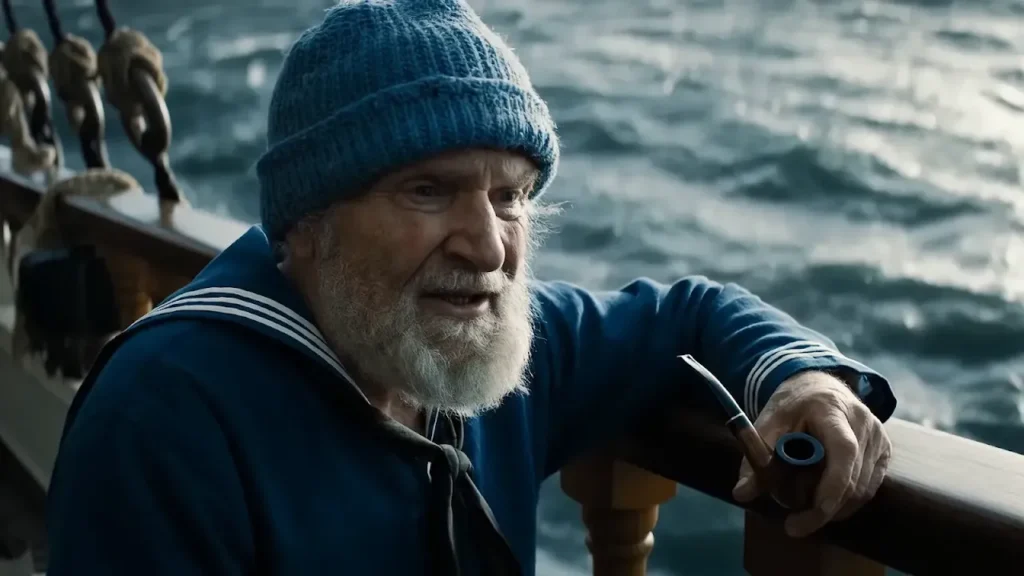
A medium shot frames an old sailor, his knitted blue sailor hat casting a shadow over his eyes, a thick grey beard obscuring his chin. He holds his pipe in one hand, gesturing with it towards the churning, grey sea beyond the ship's railing. "This ocean, it's a force, a wild, untamed might. And she commands your awe, with every breaking light"
The how
- Reference
- VID-0022
- Model
- Veo 3
- Camera motion
- Medium shot of the sailor, with the grey sea behind the ship's railing
- Style
- Cinematic
- File format
- webm
- Steps
- 1. Open Veo 3 in Google Flow or Gemini and choose text to video.
2. Paste the prompt and keep the spoken line in quotation marks.
3. Generate the video. - Expected result
- A medium shot of an old sailor with a blue knitted hat and grey beard, pipe in hand, speaking the quoted line with the grey sea behind him. Veo 3 also generates the voice and the ambient sound.
- Tips
- Put the spoken line in quotation marks so the model knows it is dialogue.
Describe the face, the clothes and one prop, such as the pipe, to keep the character consistent.
Start with the shot type, for example "A medium shot frames…".
Change only the setting, for example a lighthouse instead of a ship, to get a new scene. - Common mistakes
- Leaving the spoken line without quotation marks, so it is not clear what should be said.
Adding several actions in one shot, which makes the movement confusing.
Describing the mood with abstract words instead of what the camera sees. - Use case
- Cinematic dialogue
About this prompt
Table of Contents
- How the old sailor sea monologue prompt works
- How to use it in Veo 3
- Tips to adapt the prompt to your own character
- Common mistakes with Veo 3 dialogue prompts
- Related Content
The old sailor sea monologue below is one of the official examples that Google DeepMind shows in its Veo 3 prompt guide: a medium shot of an old sailor who speaks a line at sea. Veo 3 generates the picture, the voice and the sound together, so the spoken line goes inside the prompt.
How the old sailor sea monologue prompt works
The prompt names the shot type first, then describes the face, the clothes, one prop and the sea behind the character, and ends with the spoken line in quotation marks.
How to use it in Veo 3
Open Veo 3 in Google Flow or Gemini, choose text to video, paste the prompt and generate. Keep the quotation marks around the dialogue.
Tips to adapt the prompt to your own character
Change the character, the prop or the setting, but keep one shot, one action and one spoken line.
Common mistakes with Veo 3 dialogue prompts
Do not leave the line without quotation marks and do not pack several actions into one shot. Source: Google DeepMind, Veo 3 prompt guide.